 Pro Features
Have a message you need to deal with later? Snooze it. Snoozed messages leave your inbox and re-appear at the time you choose, so nothing sits there unread and nothing gets forgotten.
Three ways to snooze a message
1. Swipe left in your inbox
On a trackpad, swipe left over a message in your inbox to reveal the snooze action.
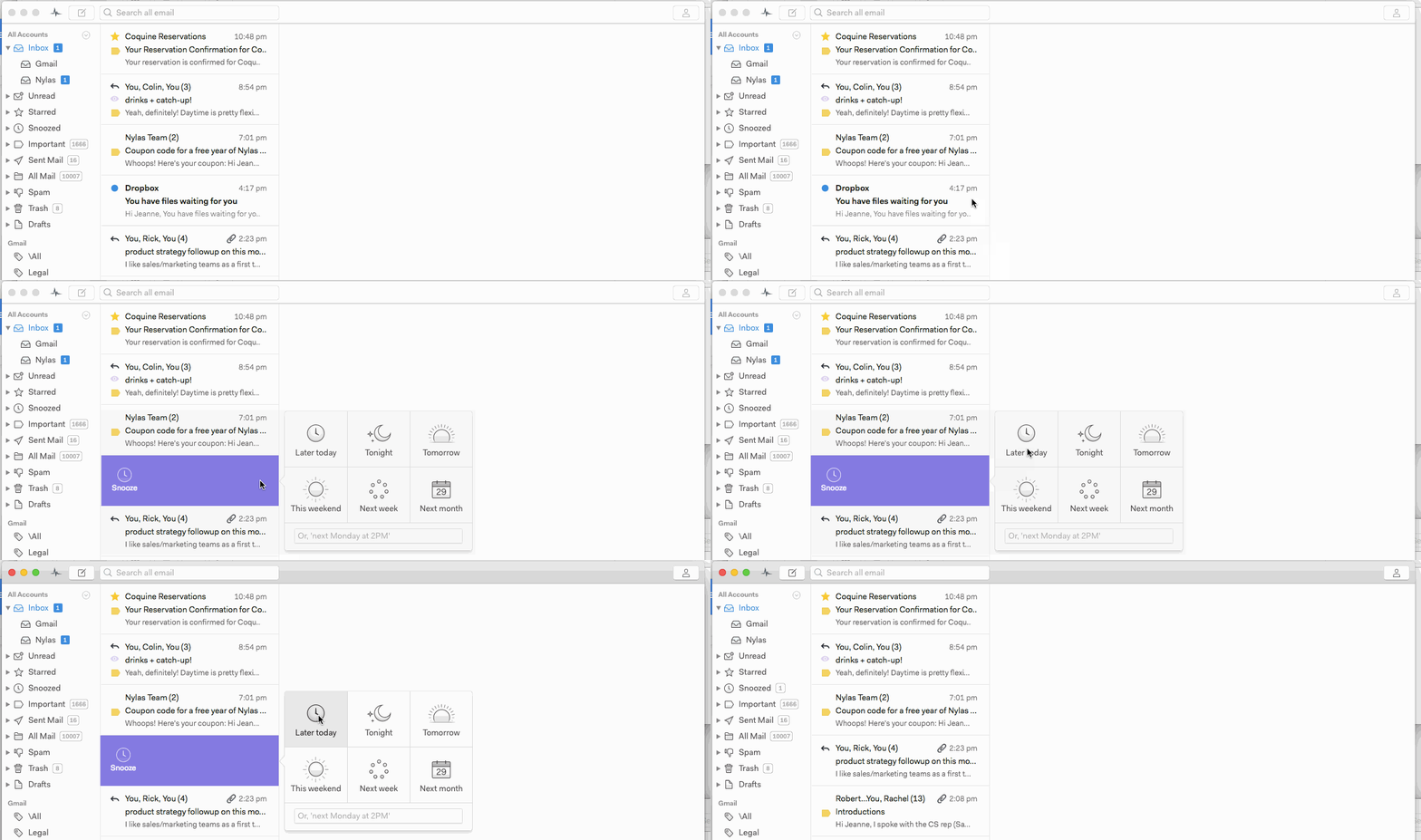
2. Hover over a message
When using the single-panel layout, hover over a message in your inbox and click the Snooze icon that appears.

3. From the message toolbar
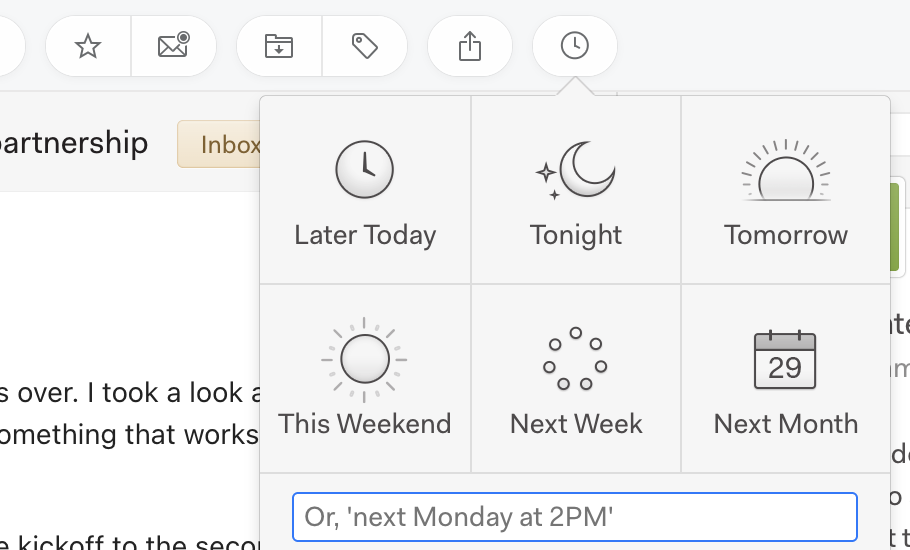
While reading a message, click the Snooze icon at the top of the message window, then choose when you’d like the message to reappear.
Finding snoozed messages
Snoozed messages are moved to a Snoozed folder (or label, on Gmail) in the sidebar, so you can always find them before they’re due. When the time you chose arrives, the message returns to your inbox.
Picking a custom time
Besides the presets (Later Today, Tonight, Tomorrow, This Weekend, Next Week, Next Month), the snooze popover has a text box that understands plain English. Type something like next Monday at 2PM, Friday 9am, or in 3 days and press Enter. If Mailspring can't parse what you typed, it tells you rather than guessing.
Unsnoozing early or changing the time
Open the Snoozed folder in the sidebar and move the conversation back to your Inbox — drag it onto Inbox, or use the Move to... button in the toolbar. Once it's out of the Snoozed folder, Mailspring won't bring it back later. To snooze it for a different time, snooze it again from the Inbox; the new time replaces the old one.
The "Mailspring Reminder" message
When a snoozed conversation comes back, Mailspring can't change a message's date on the mail server, so by default it sends you a small hidden message ("This thread has been moved to the top of your inbox by Mailspring.") inside the conversation. That's what pushes the thread to the top of your inbox on your phone and in webmail too. If you'd rather not receive it, go to Preferences > General and uncheck Resurface messages to the top of the inbox when unsnoozing. Snoozed threads will then simply be marked unread when they return.