 Pro Features
Set up and manage mail rules at Preferences > Mail Rules.
Mail rules help you manage your inbox more easily by automating the handling of certain incoming messages.
To set up a new mail rule, define the conditions you want to use to select messages, then define the action (or actions) you want to take on messages that meet the criteria.
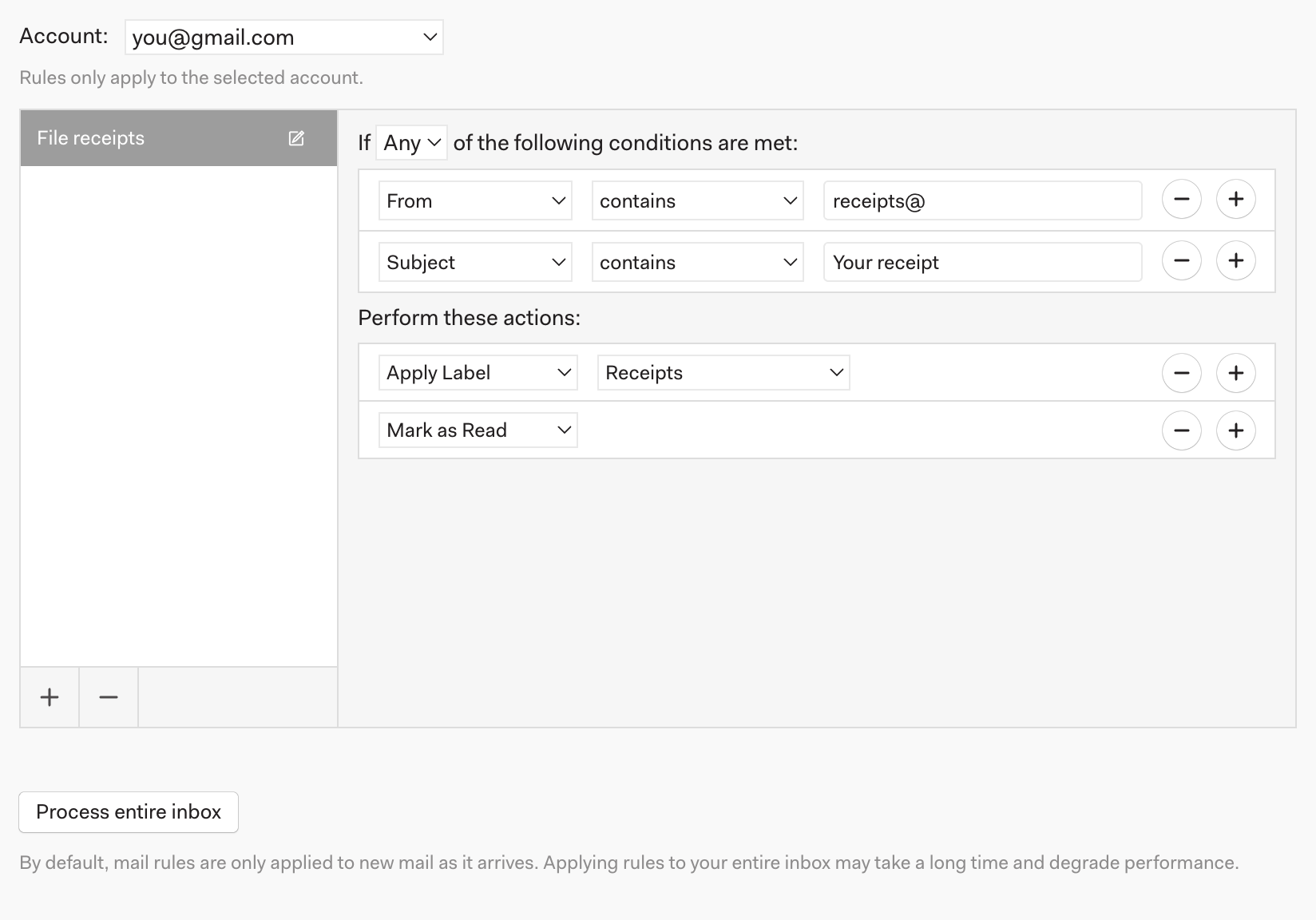
By default, mail rules are applied to incoming mail as it arrives. If you’d like to apply a new rule to your entire inbox immediately after you create it, you can click “Process entire inbox.” This processing may take some time depending on the size of your inbox.
What a rule can match
Each rule tests any or all of its conditions. You can match on From, To, Cc, Bcc, Recipient (any of To / Cc / Bcc), Reply to, Subject, Body, Attachment name, Has attachment, and Starred, using contains, does not contain, begins with, ends with, equals, or matches expression (a regular expression). There is currently no condition for an existing label or folder.
What a rule can do
- Mark as Read, Star, Move to Trash
- Forward to an address you type in — Mailspring sends the forward automatically from the account that received the message.
- For Gmail accounts: Apply Label, Move to Label (applies the label and removes the others), Archive, and Mark as Important. To file a message under a label and take it out of the inbox, add both Apply Label and Archive to the same rule.
- For other accounts: Move Message to a folder.
To block a sender, create a rule with From contains their address and the Move to Trash action. Marking a message as spam doesn't teach your provider's filter by itself, so a rule is the reliable way to keep a sender out of your inbox.
Good to know
- Rules belong to one account. Pick the account at the top of the Mail Rules tab before creating a rule.
- Rules run inside the Mailspring app as new mail arrives, so they only apply while Mailspring is running. Mail that arrives while Mailspring is closed is processed when it next syncs and downloads the message.
- Process entire inbox only works for rules that don't need the message Body, and it only looks at the inbox — it can't be pointed at another folder.
- If an action can't be completed (for example the target folder was deleted), Mailspring disables the rule and shows the reason; fix the action and click Enable.
- Folders that rules file mail into don't show an unread badge unless you turn on Show unread counts for all folders / labels in Preferences > General, and they don't trigger desktop notifications (see Configuring your notifications).