 Pro Features
Mailspring ships with shortcut sets modelled on Gmail (the default), Inbox by Gmail, Outlook, and Apple Mail. Choose one from the dropdown in Preferences > Shortcuts. If shortcuts you've memorised suddenly behave differently (for example Delete archiving instead of trashing), check that this dropdown hasn't changed.
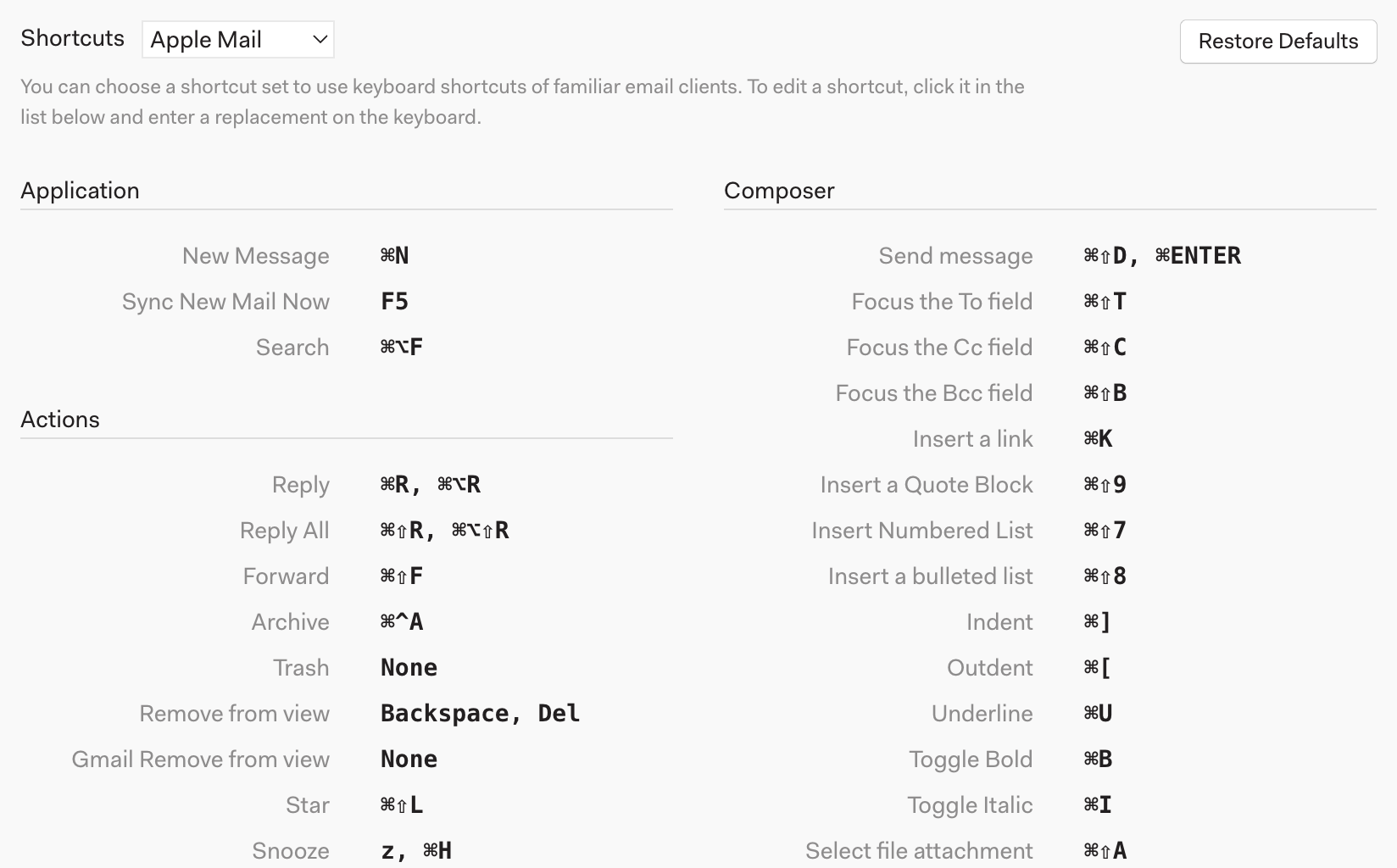
Changing a single shortcut
Click any shortcut in the list and press the key or key combination you want to use instead. Chords work too — press one key, then another. Restore Defaults in the top right throws away all of your customizations and returns to the selected template.
Removing a shortcut entirely
Click Edit custom shortcuts at the bottom of the Shortcuts tab to open keymap.json in your text editor. Bindings in this file replace the template's bindings for that command, so an empty list turns the shortcut off. For example, to stop # from deleting:
{
  "core:delete-item": []
}
Save the file — Mailspring reloads it immediately. The command names are shown in the same file once you've customized a shortcut from the Preferences UI.
A few Gmail-set shortcuts people ask about
- Shift+I / Shift+U — mark as read / unread. Combine with Ctrl/Cmd+A to mark everything in a folder at once (or right-click the folder in the sidebar and choose Mark All as Read).
- E archive, # trash, Y remove from view, S star, Z snooze.
- / focus the search box, C compose, R / A reply / reply all, F forward.
- Ctrl/Cmd+P print the current conversation.