Pro Features
To manage your signatures, go to Preferences > Signatures :
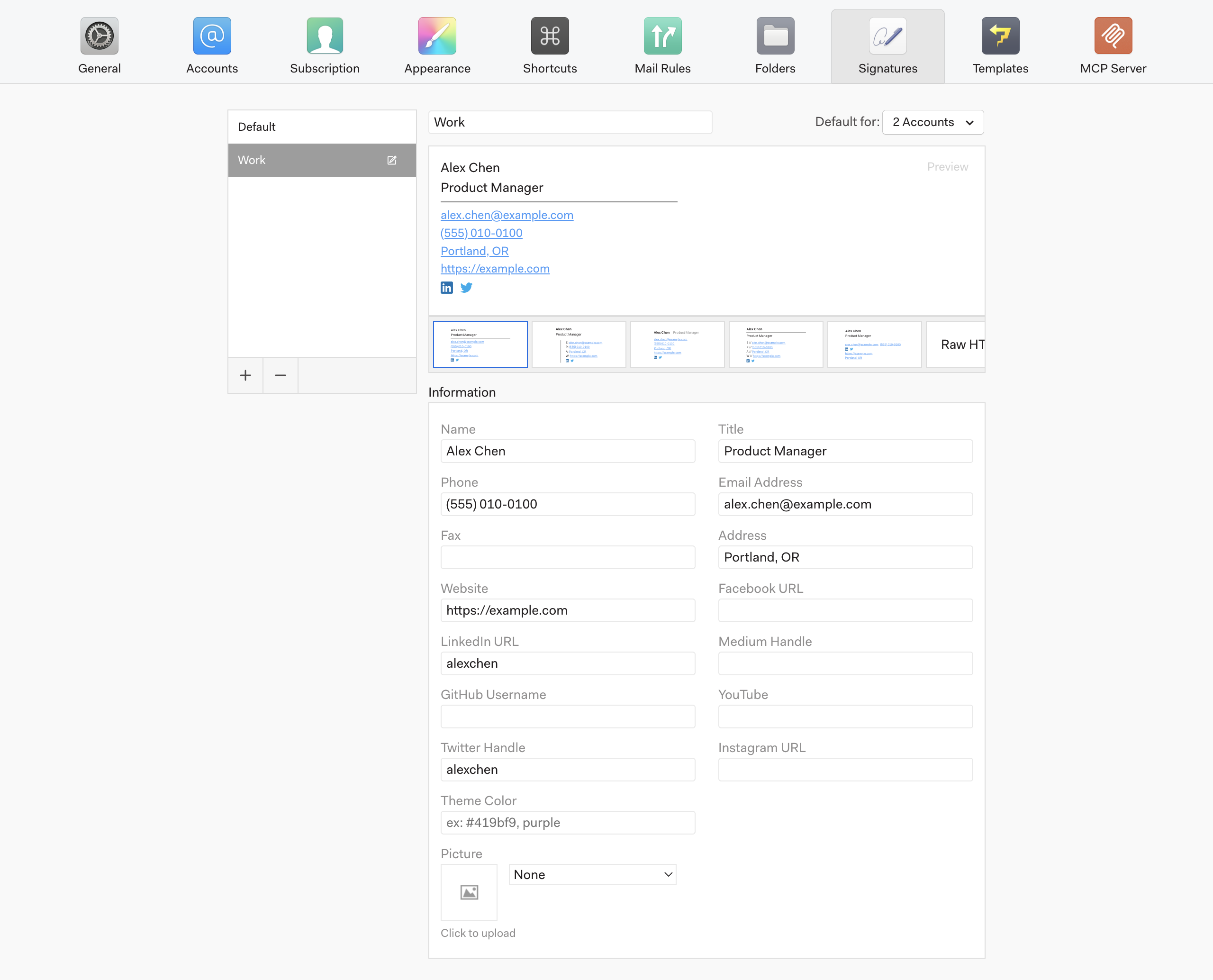
The Mailspring signature editor makes it easy to create signatures to use in your emails. Here’s a quick breakdown of the options available from Preferences > Signatures:
Manage Signatures
The left sidebar shows the signatures that you’ve created. Click one to edit it, or click the “-” icon beneath the panel to remove the selected signature. To create / duplicate one of your existing signatures, click “+”.
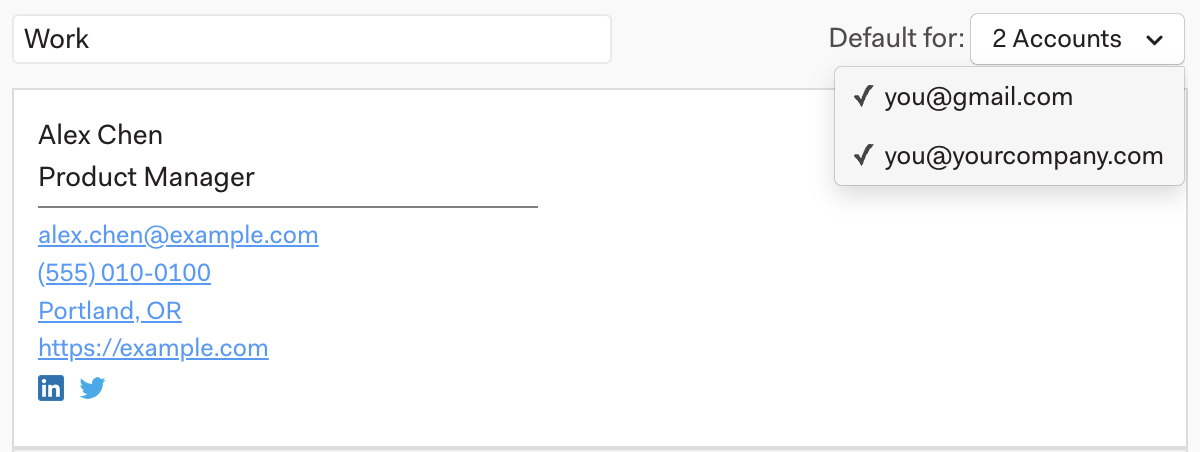
Make Signatures the Default
In the top right corner of the signature editor, a dropdown allows you to make the selected signature the default for one or more accounts. When a signature is the default, it is automatically used when you compose new messages or replies from that account.
Adding a photo or logo
Templates can include a picture. The Image dropdown offers Gravatar Profile Photo (looked up from your email address), Company / Domain Logo (looked up from your domain), or Custom Image…. Custom images are resized to 250 px and hosted by Mailspring so they display in every recipient's mail client. Because of that hosting, Custom Image… only appears when you're signed in with a Mailspring ID — if you only see the Gravatar and logo options, sign in under Preferences > Subscription first. Uploads must be PNG, JPG, GIF, SVG, or TIFF.
Copying signatures to another computer
There's no export button, but signatures are plain data in Mailspring's config.json (see where Mailspring stores its data). With Mailspring quit on both machines, copy the "signatures" and "defaultSignatures" entries from the old file into the new one.
Use Templates or RAW HTML
Beneath the signature preview box, you’ll find a horizontal list of available signature templates. Templates make it easy to create a beautiful signature. Once you’ve selected a template, you can use the “Information” section beneath the template list to enter contact information you’d like displayed.
If you have a signature you’ve created elsewhere and want to use in Mailspring, or want to edit your signature as HTML, scroll the template list all the way to the right and choose Raw HTML — the editor switches to a Raw Source field where you can paste your own markup

Add an Image
To add an image to your signature, choose a template and scroll to the bottom of the “information” section. You can choose to use an existing image that is available online, like your Gravatar Profile Photo or Company Logo, or upload a custom image or URL:
To choose a URL: Select “Custom Image” from the dropdown - an input appears and you can paste in your URL.
To choose an image on your computer: Click the Click to upload box, or drag-and-drop a file from your computer on to the box. The image will be resampled for your signature and uploaded so it can be viewed by everyone who receives your emails.
Use Your Brand Color
To theme a signature template and make your signature match your brand, enter a “hex color” or color name into the “Theme Color” box under “Information”:
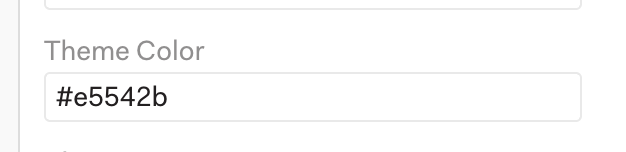
The theme color is applied to certain parts of your signature to give it a beautiful on-brand look: