 Pro Features
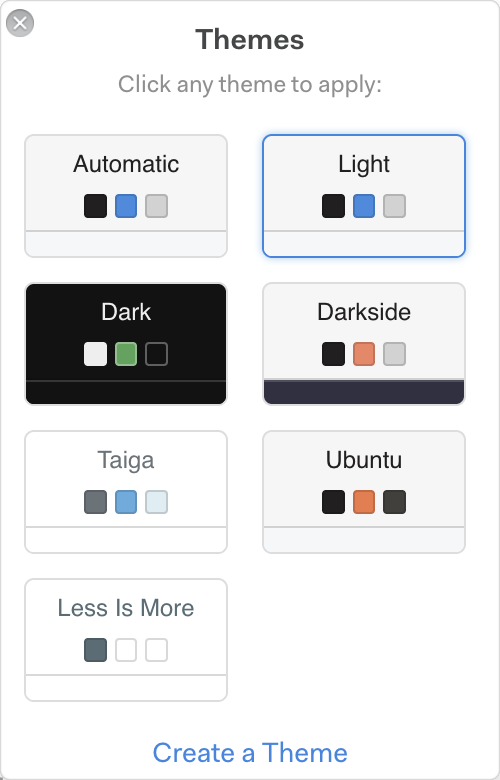
Open the theme picker from Preferences > Appearance > Change Theme... (or Mailspring > Change Theme... in the menu). Click any theme to apply it instantly.

Following your system's light and dark mode
Choose the Automatic theme and two dropdowns appear: When light and When dark. Pick the theme to use in each mode and Mailspring switches whenever your operating system does.
Accent colour
By default Mailspring picks up your operating system's accent colour for buttons, selections, and links. If you'd rather keep the theme's own colours (for example the green in the dark theme), uncheck Use system accent color in Preferences > Appearance.
Dark themes and email content
Themes restyle Mailspring's interface, not the emails themselves. Under Preferences > General > Reading > Email body appearance, Dark email mode adapts message backgrounds and text to a dark theme; switch back to Light email mode if a newsletter looks wrong. If a message with a black background shows white-on-white text, try the other mode.
Installing your own
Choose Install Theme... from the menu (or Create a Theme in the theme picker) to load a theme folder from disk. Themes are LESS stylesheets in a small package; see updating an N1 theme for the package format.