 Pro Features
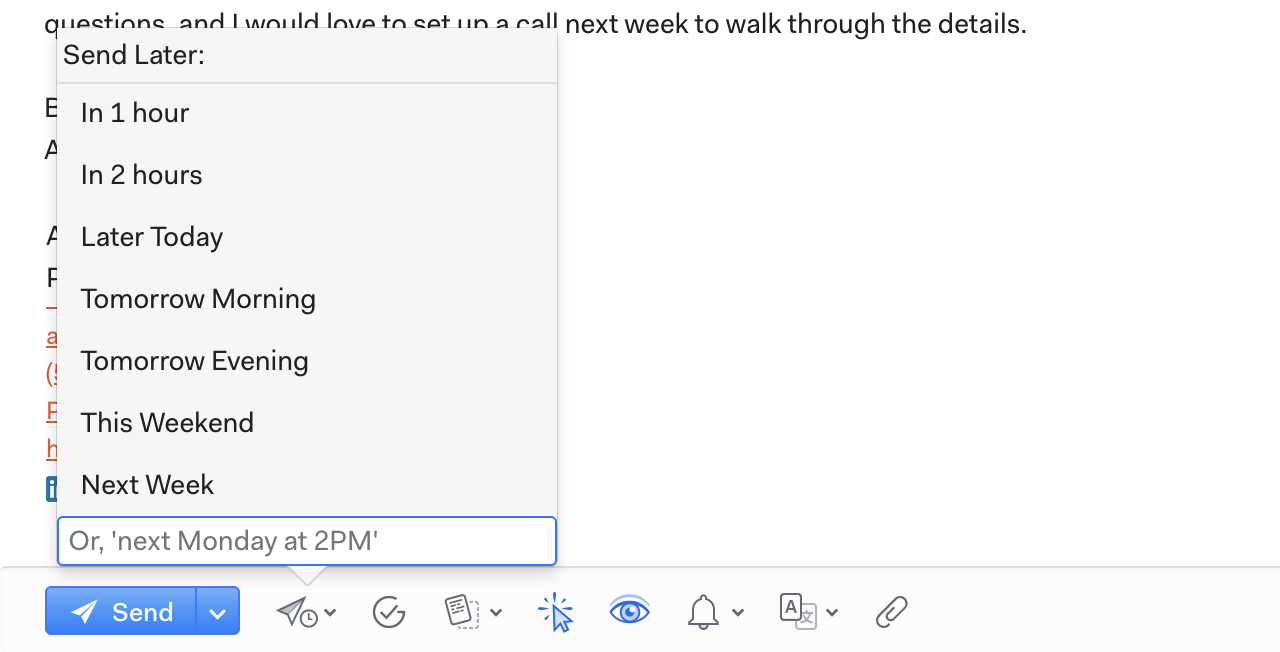
Click the Send Later icon at the bottom of your message, then choose the time you’d like to send the message. Your message will be in your Drafts folder and available for editing until the send time.
Please note, Mailspring must be running for the message to send as scheduled. If you close Mailspring or hibernate your computer, it won’t be able to send until the next time you open Mailspring.
See: Does Mailspring need to be running to send scheduled emails?