 Pro Features
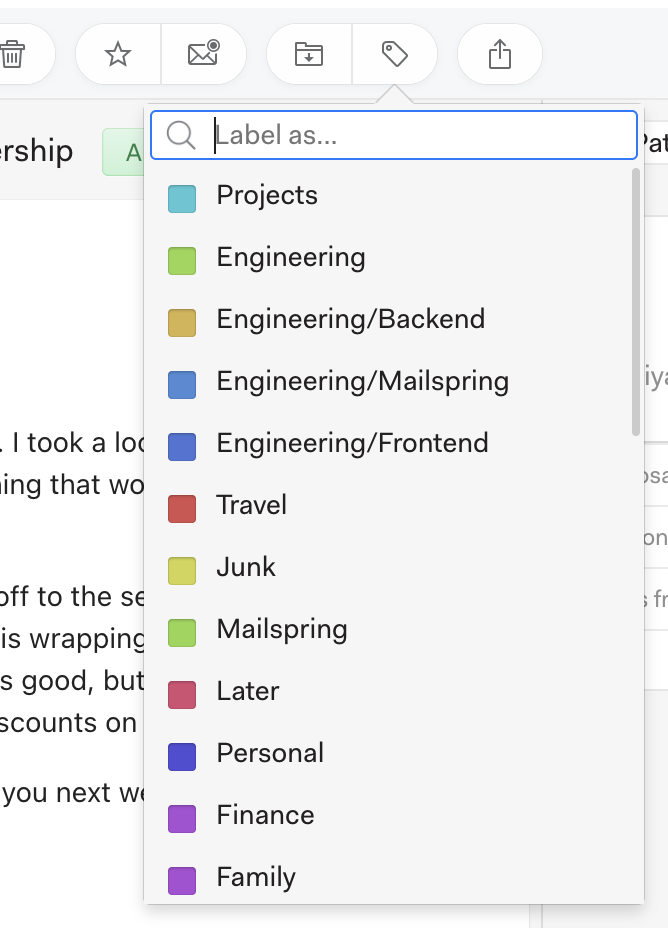
To add Gmail labels to a message, click the Apply Label (tag icon) button in the toolbar while viewing a Gmail conversation. Type a new label name to create a new label, or select an existing one from the list:
You can also remove labels from a conversation by hovering over the label chips beside the subject line and clicking the small “×” that appears:

Note that the label picker only appears for Gmail accounts. If you’re viewing your unified inbox, you may have Gmail conversations side-by-side conversations from other accounts that do not support labels and the label picker may only appear part of the time.