 Pro Features
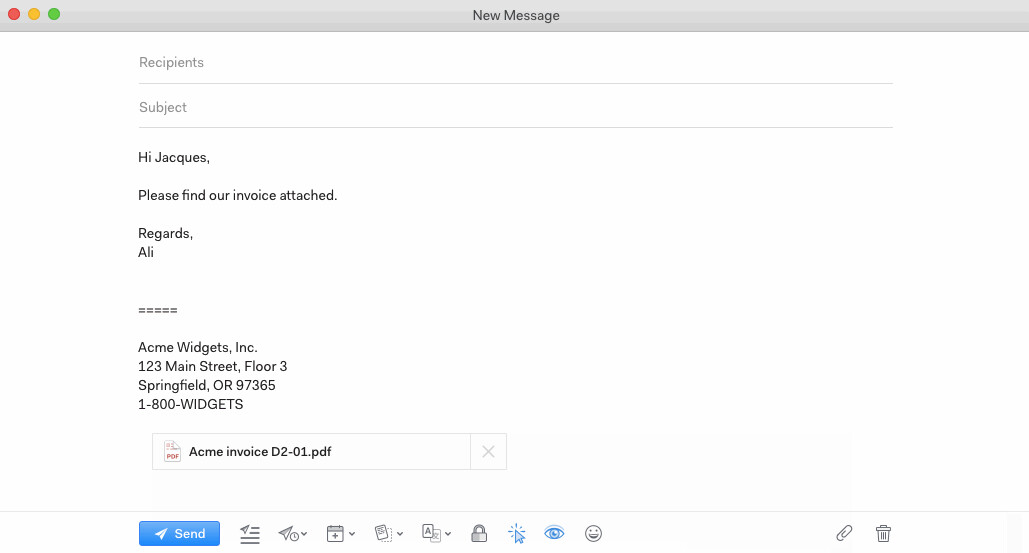
Click the paperclip icon at the bottom of the composer, or drag files onto the message window, to attach them. Each file can be up to 25 MB, and a message can carry 25 MB of attachments in total.
Attachment or inline image?
Where you drop an image decides how it's sent. Drop or paste it into the text of your message and it becomes an inline image at that spot. Drop it on the header area or use the paperclip and it's sent as a regular file attachment. To turn an inline image back into an attachment, drag it out of the body.
Receiving attachments
Attachments are downloaded along with the message and cached in Mailspring's data folder, so they open instantly. Click an attachment to preview it, click the download arrow to save it, or use Download All on messages with several files. Two settings in Preferences > General > Attachments control this behaviour: Open containing folder after downloading attachment and Display thumbnail previews for attachments when available.
Linux: the file picker only shows my home folder
The snap and Flatpak builds run in a sandbox, so the file chooser only sees the locations the sandbox allows — for the snap that's your home folder. Copy the file into your home folder first, or, for Flatpak, use Flatseal to grant access to the folders you need. If you'd rather not deal with sandbox permissions, the .deb and .rpm packages from getmailspring.com/download can see your whole filesystem.