 Pro Features
The Activity view in Mailspring has a Feed tab that lists every time someone opened one of your messages or clicked one of your links. It's the place to go when you want to answer "did they see it?" for a specific person or a specific email, or when you need to export your tracking history to a spreadsheet.
Read receipts and link tracking are on by default when you compose a message. If you'd like a refresher on how they work, see Enable read receipts, link tracking, and notifications.
Finding the Feed
There are two ways to get there. You can click Activity in the left sidebar, under your folders:
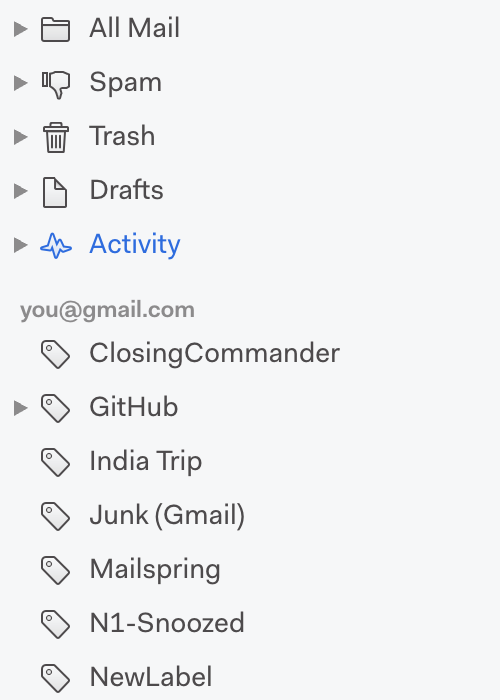
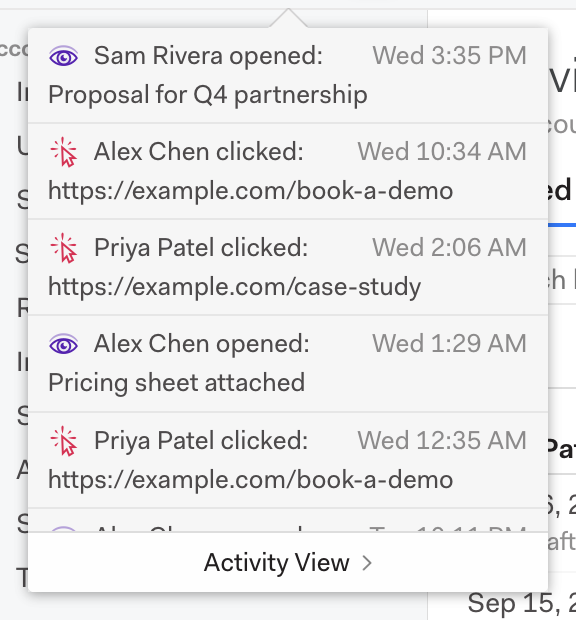
Or click the activity icon in the top-left corner of the window. That opens a small popover of your most recent opens and clicks, and the Activity View link at the bottom takes you to the full Feed.
What you're looking at
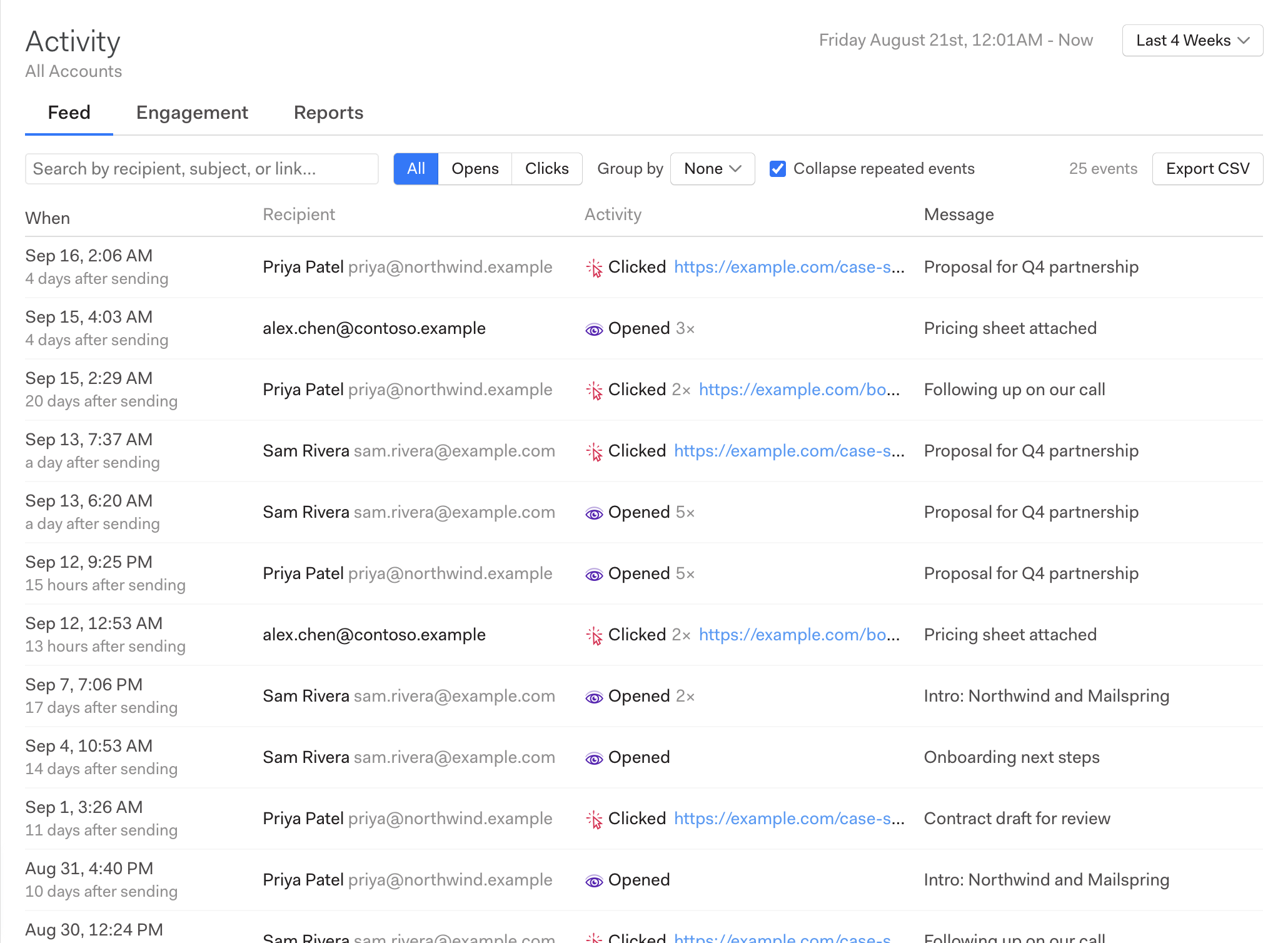
The top of the page shows which account(s) you're viewing and the time range. The time range dropdown on the right applies to all three tabs (Feed, Engagement, and Reports), so you can pick "Last 7 Days" or a specific month and see the same window everywhere.
Each row in the Feed is one event:
- When: The date and time the recipient opened the message or clicked the link, with the delay since you sent it underneath ("4 days after sending"). The delay is a quick read on how responsive someone is.
- Recipient: The person who opened or clicked. If you sent the message to several people, each person's opens and clicks are tracked separately. Click a recipient's name to start a new message to them.
- Activity: An eye icon for an open, or a cursor icon and the link's address for a click. Click the address to open that link in your browser.
- Message: The subject of the email. Click it to open that conversation in a new window, so you don't lose your place in the Feed.
Repeated opens and clicks
People often open the same email several times. By default the Feed collapses those into a single row showing the first open, with a small count next to it, like "Opened 3×". Hover over the count to see the total.
If you'd rather see every individual event, uncheck Collapse repeated events in the toolbar.
Searching and filtering

- Search: Type any part of a name, email address, subject line, or link address. The Feed narrows as you type.
- All / Opens / Clicks: Show only read receipts, only link clicks, or both.
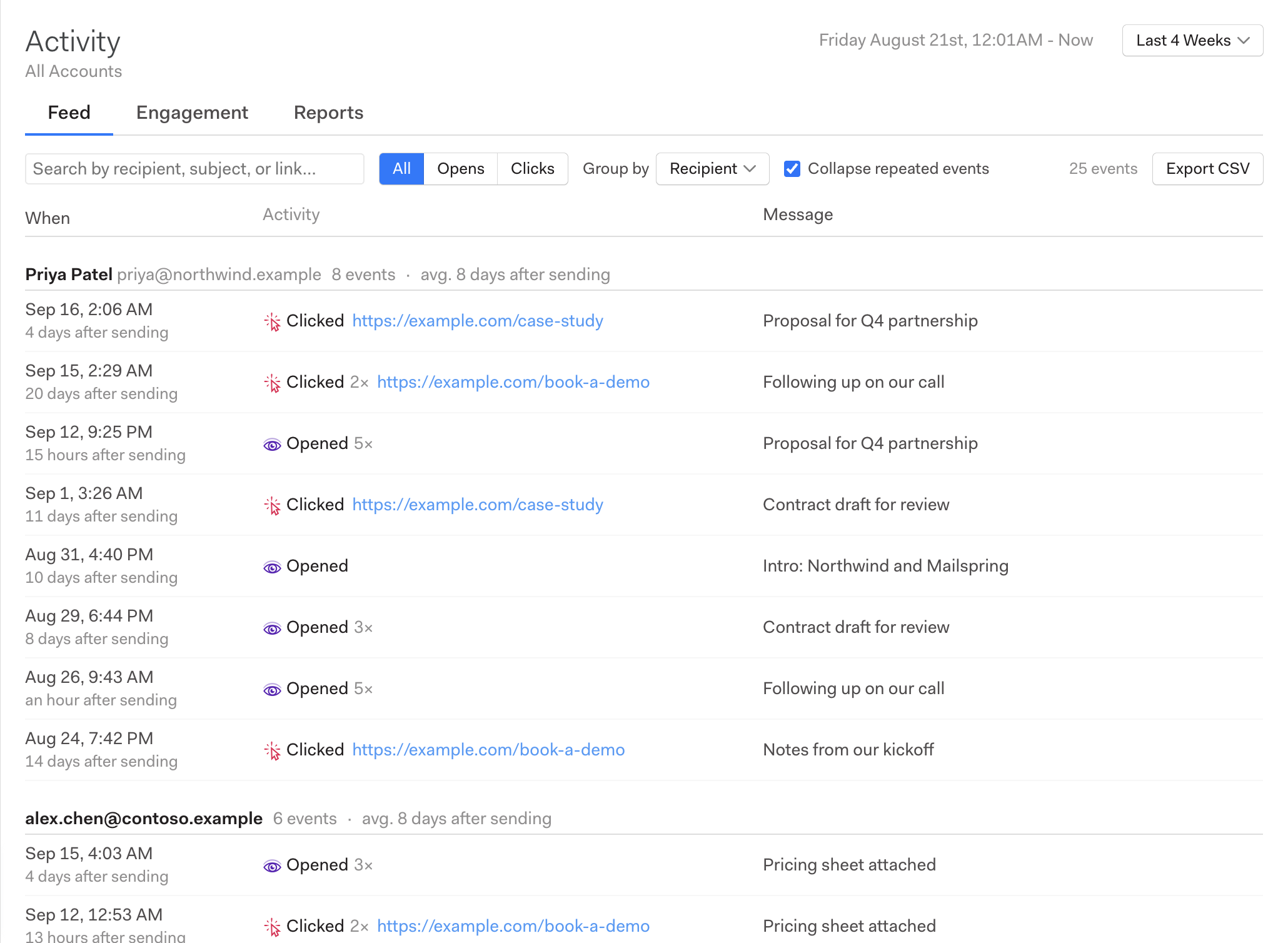
- Group by: Choose Recipient to see everything a particular person has done, or Message to see everyone who interacted with a particular email. Each group shows the number of events and the average delay after sending.
Exporting to a spreadsheet
Click Export CSV to save what's currently shown in the Feed. The export respects your search, filter, and time range, and includes one row per event with the timestamp, recipient name and email, whether it was an open or a click, the link address, the subject line, and the number of repeated events that were collapsed into it. The file opens directly in Excel, Numbers, or Google Sheets.
A note on accuracy
Read receipts work by loading a tiny image when the email is displayed. Some email providers load images automatically on the recipient's behalf (Apple Mail's privacy features and Gmail are the most common), which can register an open before the person has actually read the message. Link clicks are more reliable, and replies are the most reliable signal of all. Treat a single open as "probably delivered and noticed" rather than proof that it was read.
Related
- The Engagement tab rolls these events up into one card per recipient.
- The Reports tab charts your mail volume, response times, and open, click, and reply rates.
Wish we had metrics that you don't see here? Email support@getmailspring.com and let us know!