 Pro Features
The Engagement tab in Mailspring's Activity view turns your read receipts and link tracking into a picture of each person you email. Instead of a list of individual opens and clicks, you get one card per recipient, sorted into three columns based on how much they've interacted with your messages. It's built for anyone who sends a lot of email to prospects, clients, or candidates and wants to know at a glance who to follow up with.
To get there, click Activity in the left sidebar and choose the Engagement tab at the top of the page.
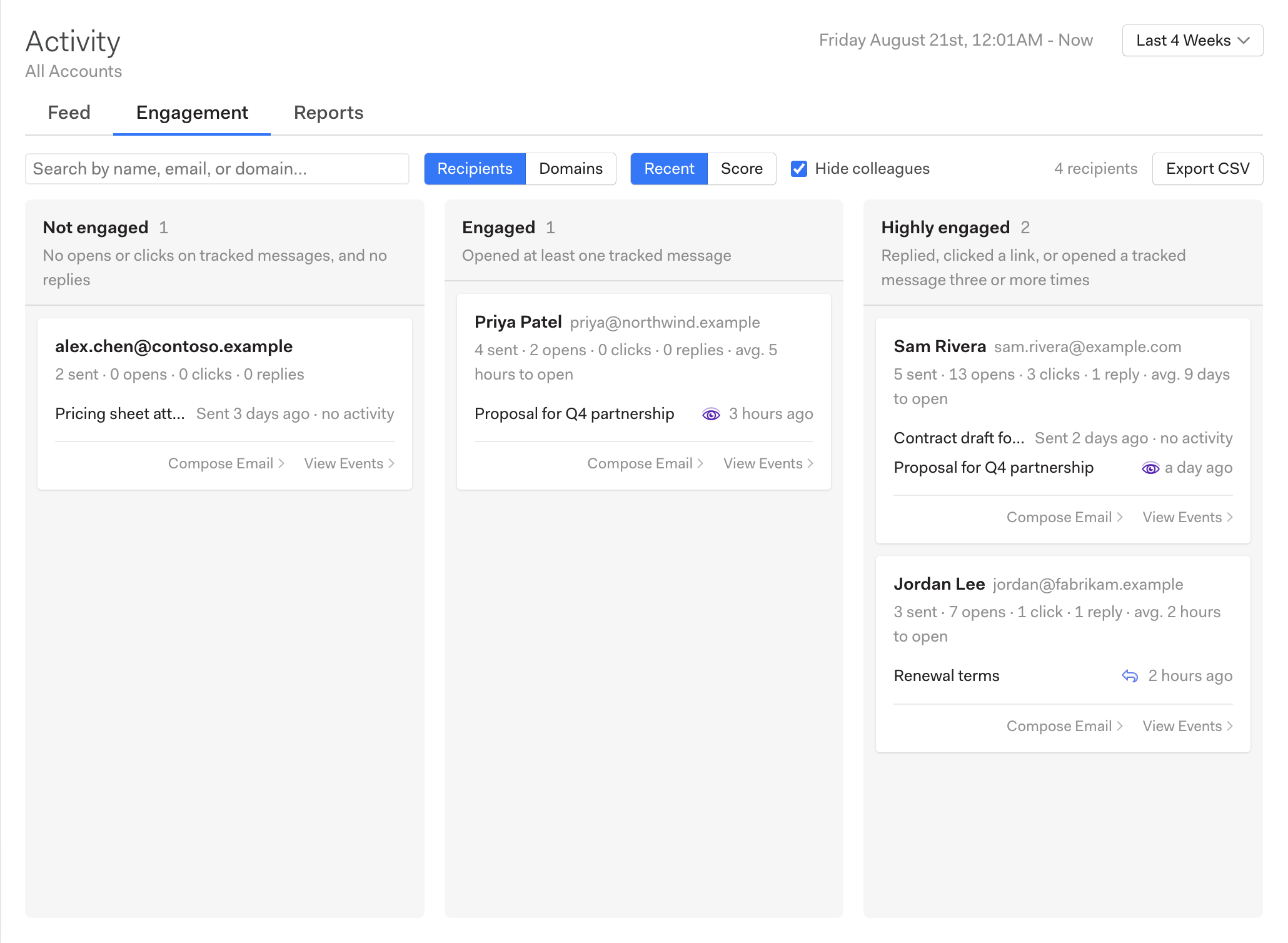
The three columns
Every person you sent a tracked message to in the selected time range appears in exactly one column. Reading left to right, engagement increases:
- Not engaged: You've sent them tracked messages, but they haven't opened or clicked any of them, and they haven't replied. These are the people your email may not have reached, or who need a different subject line or a nudge.
- Engaged: They've opened at least one of your tracked messages, but haven't clicked a link or replied. They've seen you; they haven't acted.
- Highly engaged: They've replied, clicked a link, or opened the same message three or more times. These are your warmest contacts.
A reply counts as engagement even on a message you sent without tracking, so someone who wrote back always lands in Highly engaged.
Reading a card
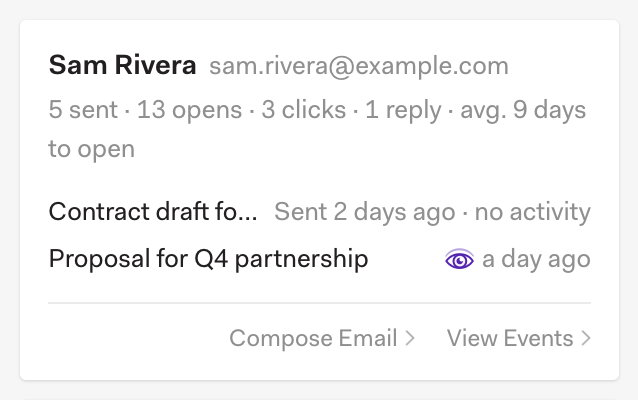
From top to bottom, each card shows:
- Name and email address. Click either one to select it, so you can copy it into another app.
- Totals for the time range: how many messages you sent them, how many opens and clicks those messages received, how many times they replied, and on average how long they took to open your emails. If some of the messages you sent weren't tracked, you'll also see how many were, since opens and clicks can only be counted on tracked messages.
- The most recent conversation you sent them, with its status on the right. If they've opened, clicked, or replied on that thread you'll see an icon and how long ago; otherwise it reads "Sent 2 days ago · no activity". This is the line to watch when deciding whether to follow up.
- The conversation they most recently interacted with, if it's a different one. It's common for someone to keep re-reading an older proposal while ignoring your newest note, and this row tells you which email actually has their attention.
Click either subject line to open that conversation in a new window. At the bottom of the card, Compose Email starts a new message to that person, and View Events jumps to the Feed tab filtered to show every individual open and click from them.
Grouping by domain
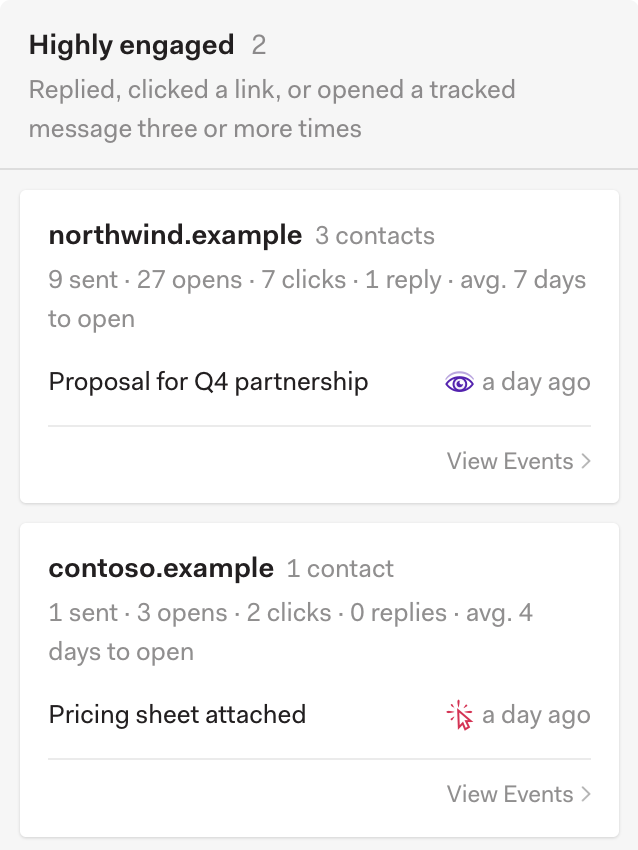
Switch from Recipients to Domains in the toolbar to roll everyone up by the company they email from. Each card then represents an organization, shows how many contacts it includes, and totals the sent, open, click, and reply counts across all of them. This is handy when you're working several people at the same company and want to know whether the account as a whole is warming up.
Sorting, searching, and hiding colleagues
- Recent / Score: Within each column, cards are ordered by most recent activity. Choose Score to rank them instead by a simple weighting where a reply counts for more than a click, and a click for more than an open.
- Search: Type part of a name, email address, or domain to narrow the board.
- Hide colleagues: On by default, this removes people who share your company's email domain, so your teammates don't crowd out your actual contacts. (People at gmail.com and other public email providers are never treated as colleagues.) Uncheck it to see everyone.
Exporting
Click Export CSV to save the board as a spreadsheet, one row per recipient (or per domain, if that's how you're grouping), including which column they're in, all of the counts on the card, the average time to first open in seconds, and the dates of their last activity and your last message to them.
How it relates to the other tabs
- The Feed tab lists the individual events behind these cards. Use View Events on any card to jump there.
- The Reports tab shows the aggregate numbers across all of your mail: open and click rates, how long people take to open, and which subject lines and links perform best.
Wish we had metrics that you don't see here? Email support@getmailspring.com and let us know!